The Ultimate Guide to TikTok Pixel: Setup, Tracking, and Optimization

TikTok is all fun and games, but when you add the ad costing, it’s a bit of a calculative step here. TikTok Pixel is a tracking code snippet (basically a HTML tag) that you install on your website to monitor and report user actions after they interact with your TikTok ads. Simply put, TikTok Pixel helps you see what people do after they click your ad.
The TikTok tracking pixel sends real behavior back to TikTok Ads Manager.
Marketers, business owners, and content creators need the raw data.
This guide makes the process easy for you. You can finally see where your money goes. Get ready to grow your shop.
While talking about TikTok ads, we cannot ignore the importance of ad accounts. Get TikTok Agency Ad Accounts from Uproas today!
What Is TikTok Pixel?

The TikTok Pixel is a lightweight and small piece of HTML code that sits on your website and tracks all the user activities who have visited from your ads. That includes page views, add to cart actions, and purchases. The pixel sends this data to TikTok Ads Manager. TikTok then uses it to improve ad delivery.
Pixel data literally trains your campaigns. The platform itself learns who clicks, who buys, and who leaves from your store. With pixel, you get better conversion tracking, cleaner reports, remarketing, and lookalike audiences with confidence.
TikTok Pixel vs Events API
Many sites use the TikTok pixel and events API. One gives speed, and another gives you accuracy. Let’s check a few more differences.
TikTok Pixel vs Meta Pixel and Google Tag
TikTok Pixel works much like Meta Pixel, as both track user actions for ads. Both help with remarketing and conversion tracking, and the setup steps also feel familiar if you have used Meta ads before.
Google tags focus more on analytics. TikTok Pixel focuses on ad learning. TikTok uses pixel data to find people who act like your buyers.
How to Create and Set Up TikTok Pixel?
This part is for people who want results fast. You already know why the pixel matters. Now you want it live and working. The good news is that the setup is short if you follow the steps in order. Let’s find out how to create a TikTok pixel.
You only need access to TikTok Ads Manager and your website.
Step 1: Create TikTok Pixel in Ads Manager
Start inside your TikTok Ads account. This is where the pixel lives and sends data back.
- Log in to TikTok Ads Manager.
- Open the top menu and go to Events Manager.
- Select Web Events.
- You will see an option to create a new pixel. Click it.
- Give your pixel a clear name. Use your site name so you can spot it later.
- Next, TikTok will ask how you want to connect the pixel.
- You have two choices.
Pick the option that fits your site. You can move forward either way.
Once you confirm, your TikTok Pixel is created. It will stay inactive until the code is added to your site.
Step 2: Install TikTok tracking pixel Code on Your Website
This step connects your site with TikTok Ads Manager. Once the code is live, TikTok can read what visitors do on your pages.
- Open TikTok Ads Manager.
- Go to the Events Manager and select your pixel.
- Copy the base TikTok pixel code.
- Open your website’s source files.
- Paste the code inside the head section of every page.
- Save and publish the changes.
That’s it. The pixel loads when a page loads. If your site uses a custom theme or hard-coded pages, this method works well.
Here are a few CMS and platform-related notes:
- Shopify users can add the pixel from the built-in TikTok app. Manual code works too if you prefer control.
- WordPress users can add the code in the theme header or use a lightweight header script plugin.
- ClickFunnels users can paste the code in the TikTok pixel tracking code section at the funnel or page level.
- Custom sites should place the code directly in the global header file.
Step 3: Verify Installation with TikTok Pixel Helper
Now, you check if the pixel actually works. Install the Chrome extension
- Open the Chrome Web Store.
- Search for TikTok Pixel Helper.
- Install the extension.
- You will see a small TikTok icon in your browser.
Test if the pixel is firing:
- Open your website in Chrome.
- Click the Pixel Helper icon.
- Look for your pixel ID and events.
If you see PageView, the base pixel works. If you see more events, TikTok pixel tracking is active.
Common helper errors and fixes
How to add TikTok tracking pixel on WordPress, Shopify, and custom sites?
Here is a quick view of the common setup paths.
Check out TikTok Ad Cost and the details here.
TikTok Pixel Tracking and Events
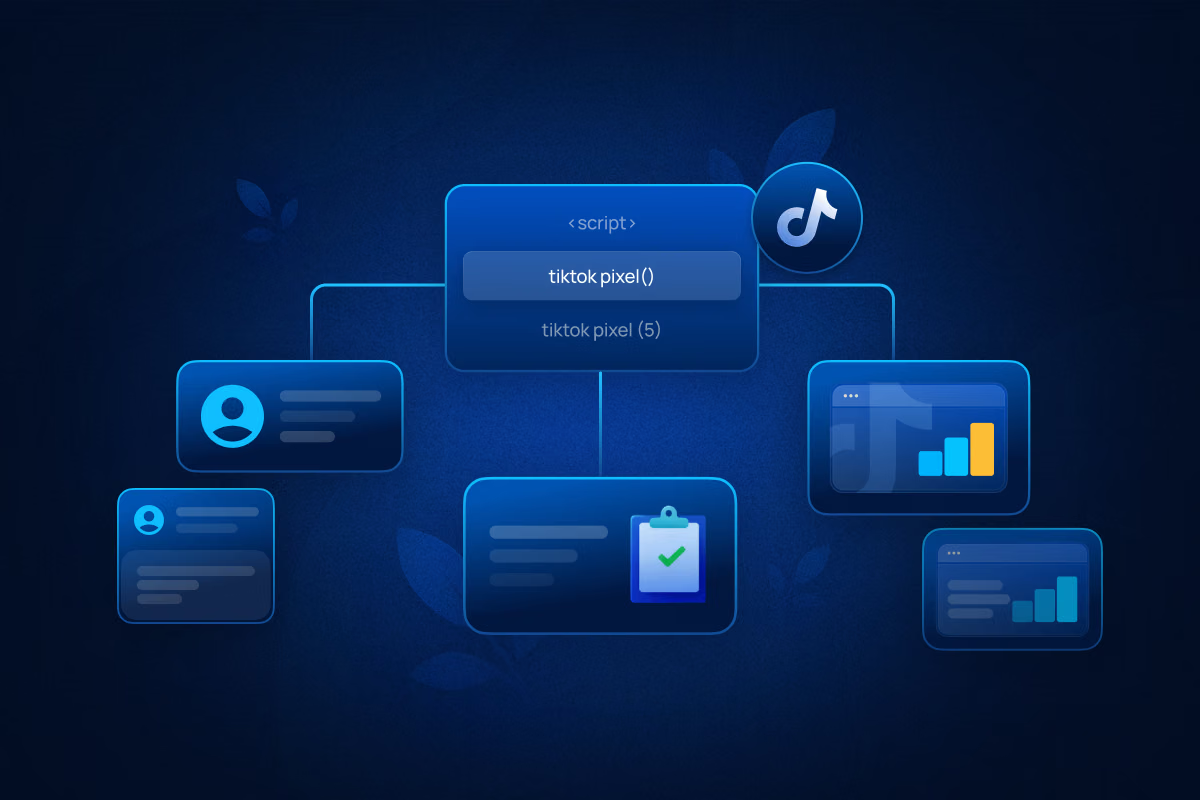
TikTok Pixel tracks what people do on your website. It sends this data to TikTok Ads Manager. That data helps you see which actions lead to sales or other goals.
The pixel fires a small piece of code when someone interacts with your site. Each interaction is called an event.
Standard Tracking Events to Configure
Custom Events and Advanced Tracking
Standard events cover most needs. They track basic actions like purchases, page views, or form submissions.
Custom events are for when you need more detail. For example, if you want to track a button click that leads to a special promotion, use a custom event.
Standard events are your everyday tools, and custom events are your precision tools. Set them carefully, as too many can slow down your site or clutter your data. Test them to make sure they fire correctly.
Common Tracking Issues and Fixes
- Sometimes your pixel fires but shows no events. That can happen if your code is misplaced or not loaded on the right pages. Double-check the placement.
- The pixel shows in the TikTok Pixel Helper but not in Ads Manager. This often means the data hasn’t synced yet. Wait a few minutes and refresh your dashboard.
- Browser blockers and cookie restrictions can also block tracking. Some users’ browsers may prevent pixels from recording activity. There isn’t always a fix, but server-side or Events API setups reduce this risk.
Check for these issues regularly. Fixing them early keeps your data accurate and campaigns effective.
TikTok Conversion Tracking
TikTok Pixel can show you what people do on your website. It tracks actions like purchases, sign-ups, or adding to cart. This data helps you run ads that actually work instead of guessing. It is your own customized TikTok conversion tracking system.
You can see which campaigns drive results and adjust them in real time. The reporting in Ads Manager shows events and conversions. You can spot trends and decide where to spend your budget.
You can also create audiences for lookalike and remarketing campaigns. Lookalike audiences reach people similar to your best customers. Remarketing targets visitors who didn’t convert the first time. Both strategies help you make the most of the traffic you already have.
Optimizing TikTok Conversion Tracking
Pick the right attribution window for your goals. Short windows are better for fast-moving campaigns. Longer windows work if conversions take time.
Use the conversion data to guide your decisions. It shows which ads and audiences perform best. You can adjust your bids and budget to focus on what drives results.
Keep an eye on your spending. Put more budget into campaigns that deliver conversions.
TikTok Pixel Implementation Options
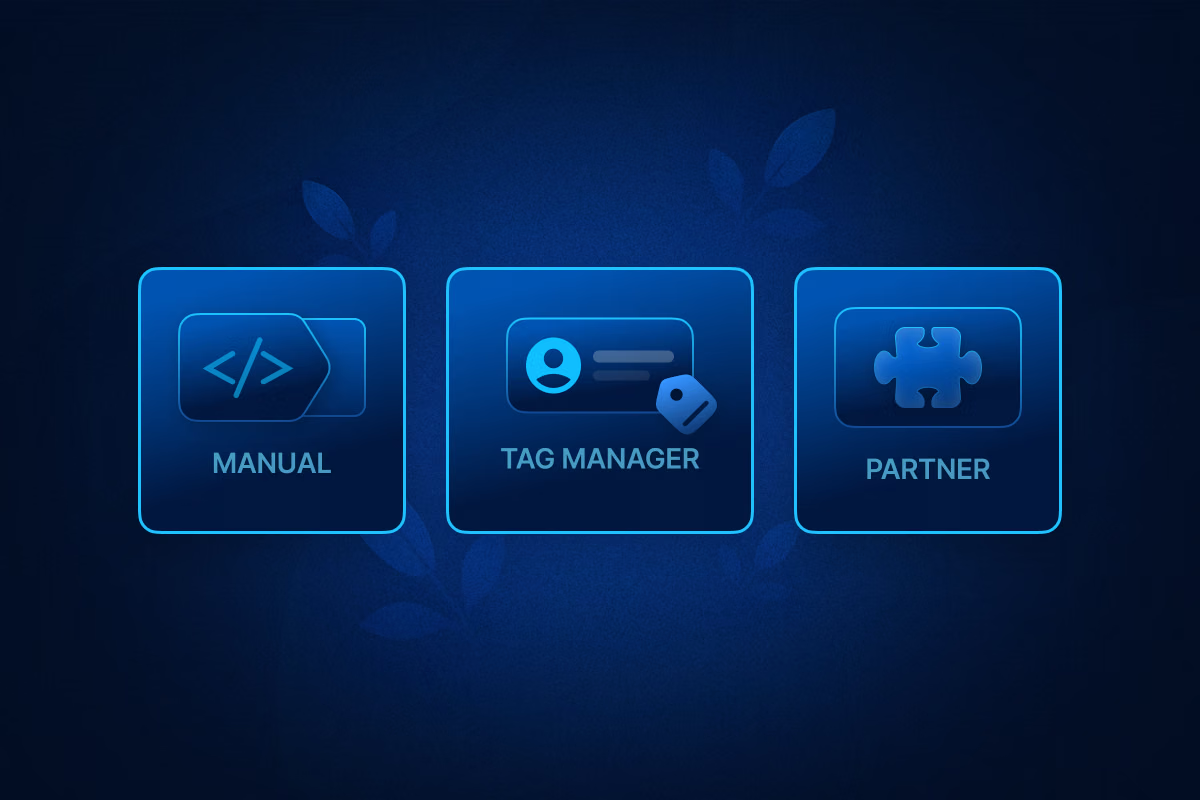
There are a few ways to add TikTok Pixel to your website. Each has its advantages, and you can pick the method that fits your needs and comfort level. Some options are simple, while others give more control for advanced tracking.
Option 1: Manual Implementation
Manual setup is straightforward. You copy the pixel code from TikTok Ads Manager and paste it into your website’s header. Use this if you have a single website and don’t plan to change your tracking often.
Choose manual when:
- You only need basic tracking events.
- You prefer direct control over the TikTok pixel code.
- You don’t want to rely on a tag manager.
Option 2: Google Tag Manager Implementation
Google Tag Manager makes pixel management easier, especially if you run multiple tags. You add TikTok Pixel inside GTM, then publish it to your website.
Here are the steps:
- Create a new tag in GTM.
- Select TikTok Pixel as the tag type.
- Add your pixel ID and set triggers for pageviews or events.
- Preview the tag in GTM to make sure it fires correctly.
- Publish when you confirm it works.
You can update or add new events without touching the site code again.
Option 3: Server-Side and Events API
Server-side setup is more advanced. The pixel sends data from your server instead of the visitor’s browser. This is useful if browser tracking gets blocked or if you need more precise data.
Benefits of server-side or Events API:
- Data is more reliable and less affected by ad blockers.
- You can track more complex events.
- It integrates directly with TikTok Ads for better attribution.
This method takes more setup but can improve your campaign performance over time. It works well if you run large-scale campaigns or need detailed conversion insights.
How to know if your pixel is installed properly?

After proper TikTok pixel implementation, you want to make sure it works. A pixel that isn’t firing correctly won’t track any events.
- Check the TikTok Pixel Helper. It is a free Chrome extension. Open your website and watch the helper icon. If it shows green, your pixel is active.
- Verify events in TikTok Ads Manager. Go to Events Manager and look at your pixel. Visit your site and see if events like PageView or AddToCart appear.
- If the helper shows errors, pay attention to the message. It will usually tell you what is wrong. Common issues include missing code snippets or browser blockers.
- Test on multiple pages and devices. Sometimes a pixel fires on the desktop but not on mobile. Make sure events are recorded where your users actually visit.
How to Delete TikTok Pixel?
Sometimes you need to remove a pixel. Maybe you are redesigning your site or replacing it with a new pixel.
- Start in TikTok Ads Manager.
- Open Events Manager and find the pixel you want to remove.
- Click on settings and look for delete.
- Confirm the deletion.
- If you installed the pixel manually, remove the code from your website.
- For Shopify, WordPress, or other platforms, delete the snippet from the theme or app where it was added.
Best Tools for Pixel Setup
TikTok Pixel Helper is the first tool you should know. It is a Chrome extension. You can use it to see if your pixel is working. It shows which events fire and which ones have issues. Errors appear clearly, so you know what to fix.
Some tools can help you generate pixel setups automatically. TLinky is one example. It creates a TikTok pixel code that you can paste on your site. This saves time and reduces mistakes.
If you use Shopify or other platforms, app-based installers are useful. They guide you step by step. You do not need to touch any code. These apps make installation faster and safer.
Tag management tools also help, especially if you run multiple pixels. Google Tag Manager is the most common. It lets you add, edit, and remove pixels without changing the site code. You can test everything in preview mode before publishing.
Measuring and Troubleshooting Performance
After you set up your TikTok Pixel, it’s important to check that it’s working. The first place to look is TikTok Ads Manager. Open Events Manager and find your pixel. You will see a list of events that have fired. Each event shows a status and the time it happened. This helps you confirm that your pixel is sending data correctly.
Sometimes the pixel does not behave as expected. Common errors include missing events or mismatched conversions.
For example, the pixel might appear in the helper but show no activity in Ads Manager. Another issue is that some browsers block tracking. These blockers can prevent events from being recorded.
Here are a few ways to fix problems:
- Use the TikTok Pixel Helper extension to test events.
- Make sure your pixel code is installed on the right pages.
- Double-check that standard events match your setup in Ads Manager.
- If you use a CMS or Shopify, confirm the integration is correct.
Real users report some surprising issues on forums. Sometimes a single missing line of code stops multiple events. Others find that custom events fire twice. Checking these reports can save you time.
If you ever need to remove the pixel, it’s simple.
Delete the code from your website or CMS. Then, verify in TikTok Ads Manager that no events are firing. This ensures your old pixel does not interfere with new campaigns.
Final Thoughts
TikTok Pixel tracks visitor actions. It shows which ads work and which don’t. You can optimize campaigns, create custom audiences, and retarget effectively. Setting it up correctly prevents lost data and wasted ad spend. Check installation, monitor events, and use tools like the Pixel Helper.
The Pixel helps you understand your audience better and get more from your TikTok ads. That’s why it matters.
If you are looking forward to maximizing your ad performance on TikTok, you can buy TikTok accounts from Uproas. Every single account we provide are aged and verified, and works wonders for ad campaigns.
Frequently Asked Questions
Do I need TikTok Pixel for TikTok Shop?
Yes. TikTok Pixel helps track what people do on your shop. It shows which actions lead to sales. You can make smarter ad decisions with that information.
How long until pixel data appears?
Usually within a few hours. Some events may take longer. Give it up to 24 hours to fully start showing data.
Why isn’t my TikTok Pixel tracking purchases?
Check the setup first. Make sure the pixel code is on the right pages. Also, confirm the event is configured correctly. Browser blockers or cookie settings can stop tracking, too.
Can I use multiple pixels?
Yes. You can use more than one pixel, but manage them carefully. Too many pixels can slow down your site and confuse tracking.
Pixel vs Events API, which one?
Use the pixel for standard browser tracking. Use the Events API when you want more precise server-side tracking. Many marketers combine both for the best results.


Latest blogs
Targeted Advertising: How It Works and How to Use It Well
Build a bulletproof targeted advertising strategy. Turn raw behavioral data into profitable segments using our step-by-step optimization plan.
Retargeting vs Remarketing: The Difference Every Marketer Needs to Know
Stop treating Retargeting vs Remarketing as identical. Use a precise, high-impact framework to weaponize your data and maximize conversions.

Google Ads Cost: What You'll Really Pay (By Industry, Campaign Type, and Business Size)
Stop wasting budget on vague pricing. See exact 2026 Google ads cost benchmarks by industry, real CPC data, and the formula to reduce your ad spend.

Types of Facebook Ads: A Complete Guide to Every Format in 2026
See all types of Facebook ads, including current specs, placements, and objectives, plus a matching table to pick the right format for your goal.
ABM Stats: 2026 Benchmarks, ROI & Trends
From ROI to pipeline velocity, these 2026 ABM stats show exactly why account-based marketing dominates B2B growth.
.jpg)
The Real Price of Social Media Advertising: A Cost Guide for Advertisers
Find out what social media ads actually cost these days. Get to know about CPC, CPM, CPL, industry verticals, budget ranges, and ROAS across major platforms.
Bing Ads Cost in 2026: Everything You Need to Know
Stop wasting money on ad spend. See the 2026 Bing Ads cost benchmarks, real industry CPAs, and hidden ROI data you need to outperform competitors.

6 Best AI UGC Video Creators for TikTok Ads in 2026
Avoid expensive creators. Find the 6 best AI UGC video platforms for TikTok ads in 2026. Cut production costs, test faster, and scale your ROI.
TikTok Ads Statistics 2026: Benchmarks, Rates and Performance Data
With 8.7M businesses competing, discover key TikTok ads statistics and different benchmarks to beat the competition and refine your ad performance.